Installation
Windows 10 and 11. About 3 minutes.
Click Download for Windows on the home page. The file HST-for-Polymarket-Setup.exe goes to your Downloads folder.
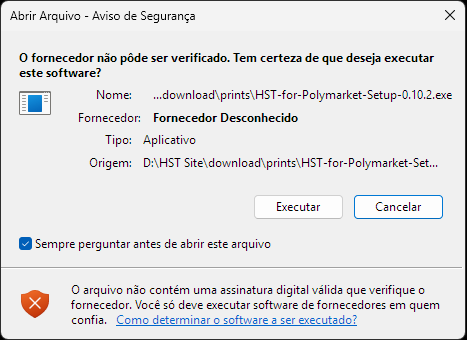
Open the file. Windows can show a security warning. Click Run.
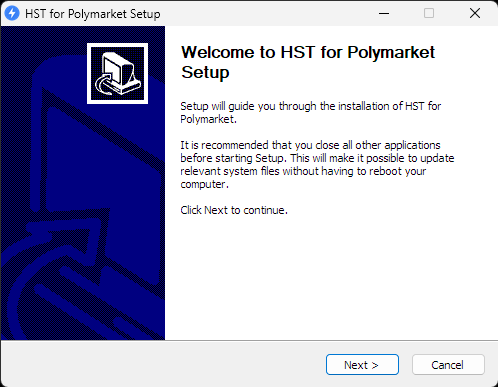
The installer opens. Click Next.
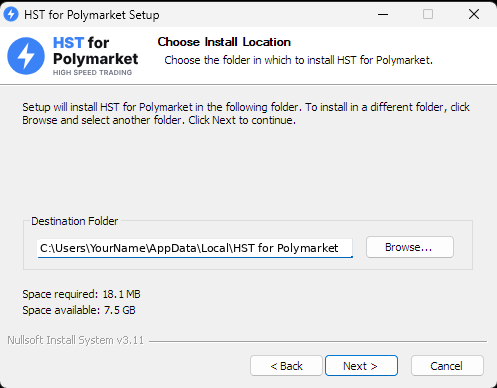
Keep the default folder. Click Next. Wait for the green bar to complete and click Next again.
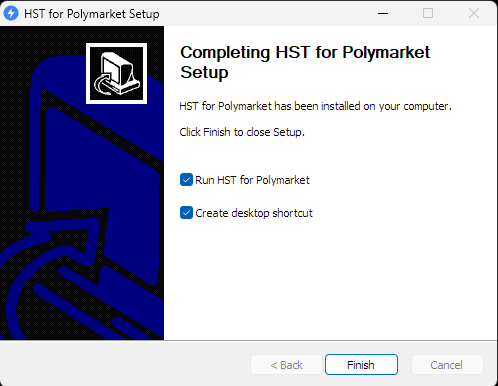
Keep both boxes checked and click Finish.
| Run HST for Polymarket | Opens the program when you click Finish. |
| Create desktop shortcut | Puts the HST icon on your desktop. |
First login
Your e-mail once, your wallet key once, your master password every time.
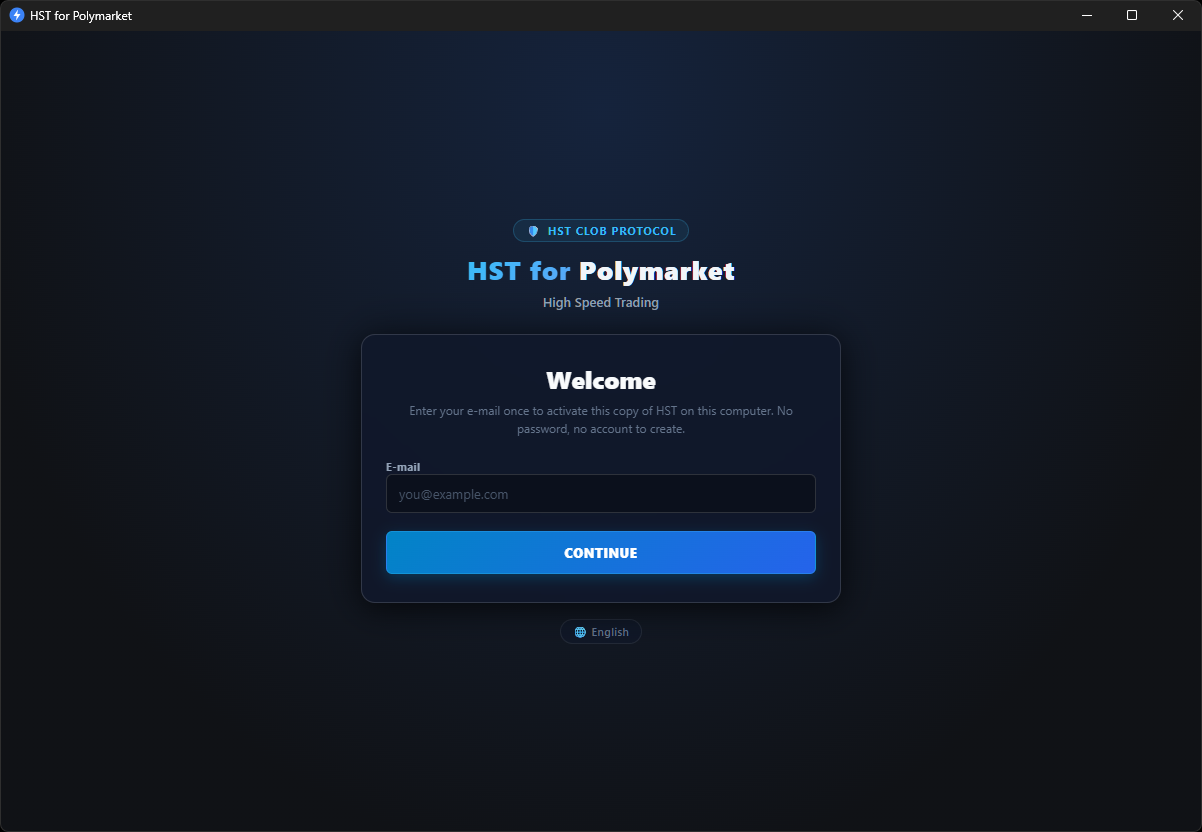
Type your e-mail and click Continue.
The e-mail validates your download on this computer. No account, no password on our system. You type it once.
| Validates this copy of HST on this computer. | |
| CONTINUE | Sends the e-mail and opens the next screen. |
| English | Changes the language of the program. |
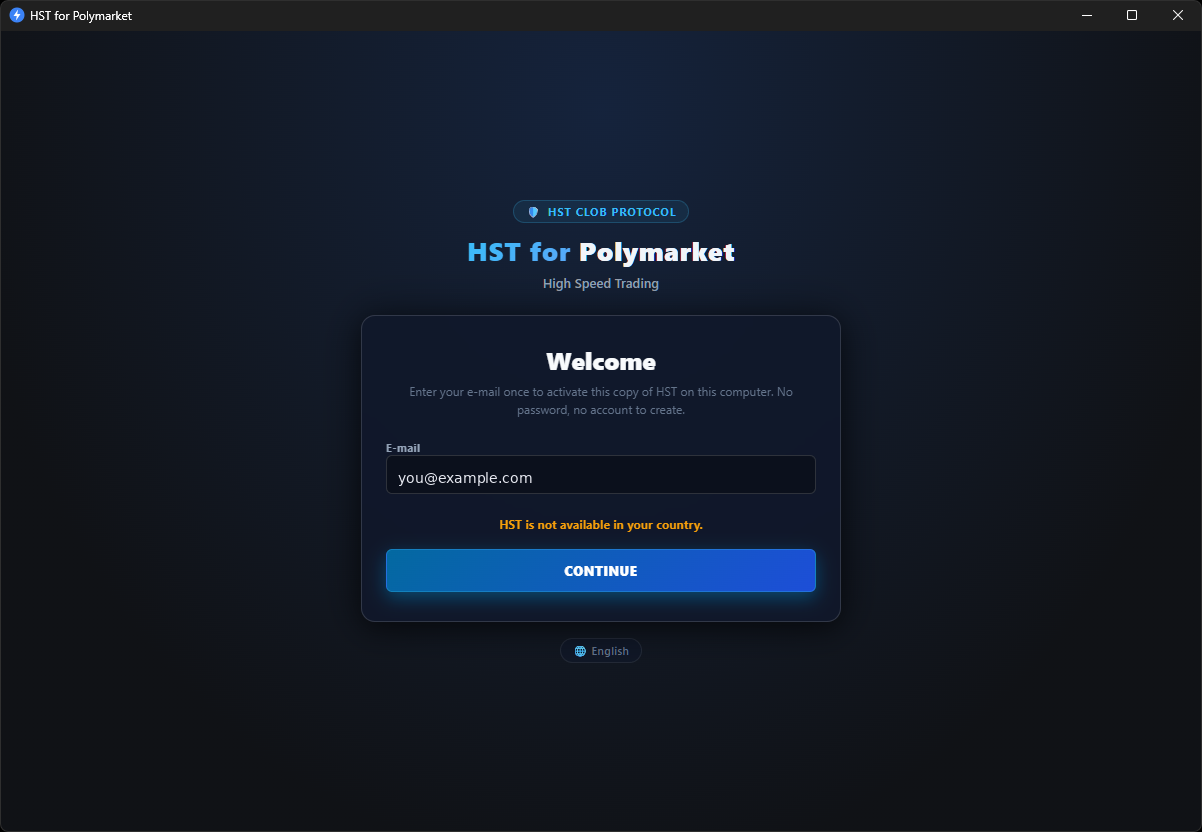
If you see "HST is not available in your country"
HST follows the list of restricted countries of Polymarket. If Polymarket is not available where you are, HST is not either.
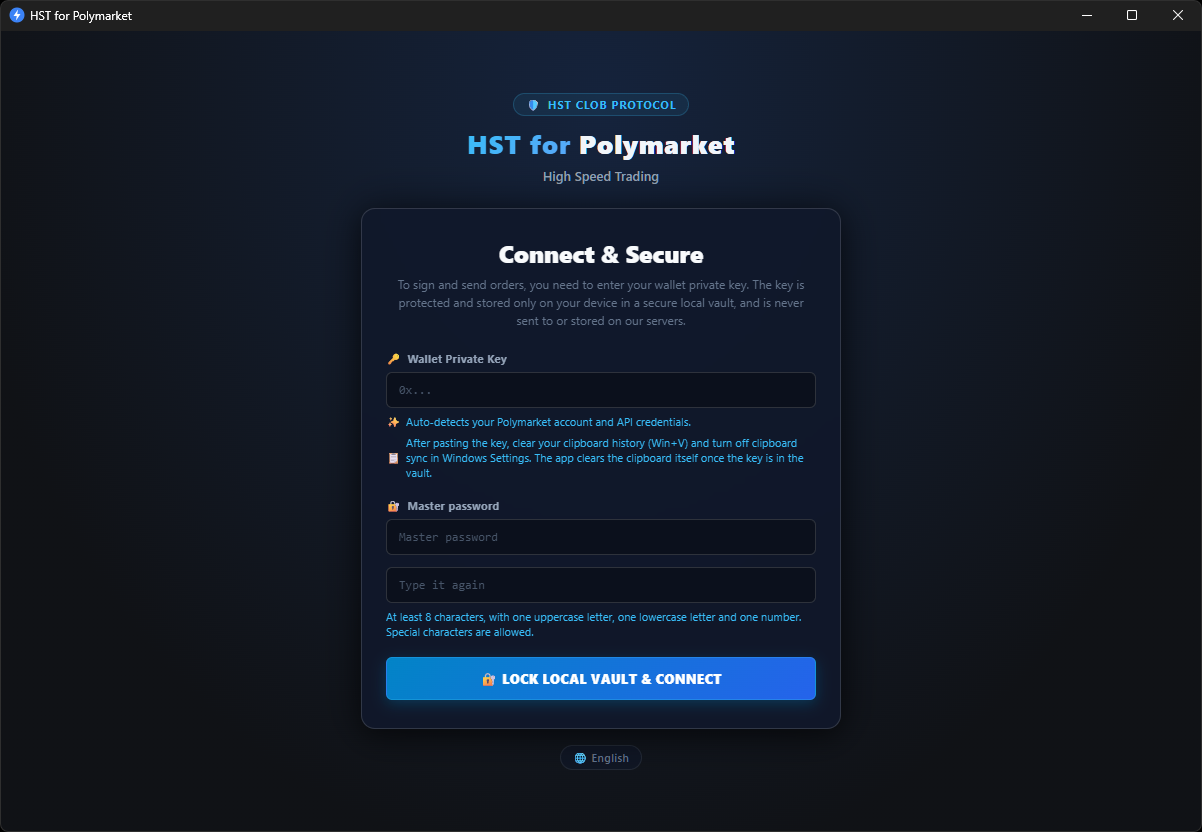
Paste the private key of your Polymarket wallet. Create a master password. Click Lock Local Vault & Connect.
| Wallet Private Key | The private key of your Polymarket wallet. HST signs your orders with it. The key stays encrypted on your computer. It is never sent to our servers. |
| Master password | Protects your key inside the vault on your computer. It is not a login password. It has no link with the e-mail you entered. At least 8 characters, with one uppercase letter, one lowercase letter and one number. |
| Type it again | Confirms the master password. |
| LOCK LOCAL VAULT & CONNECT | Saves the key in the vault and connects to Polymarket. |
HST opens on the main screen. Next time you open HST, it asks only for your master password.
Choosing markets
Pick a category, pick a game, open the ladder.
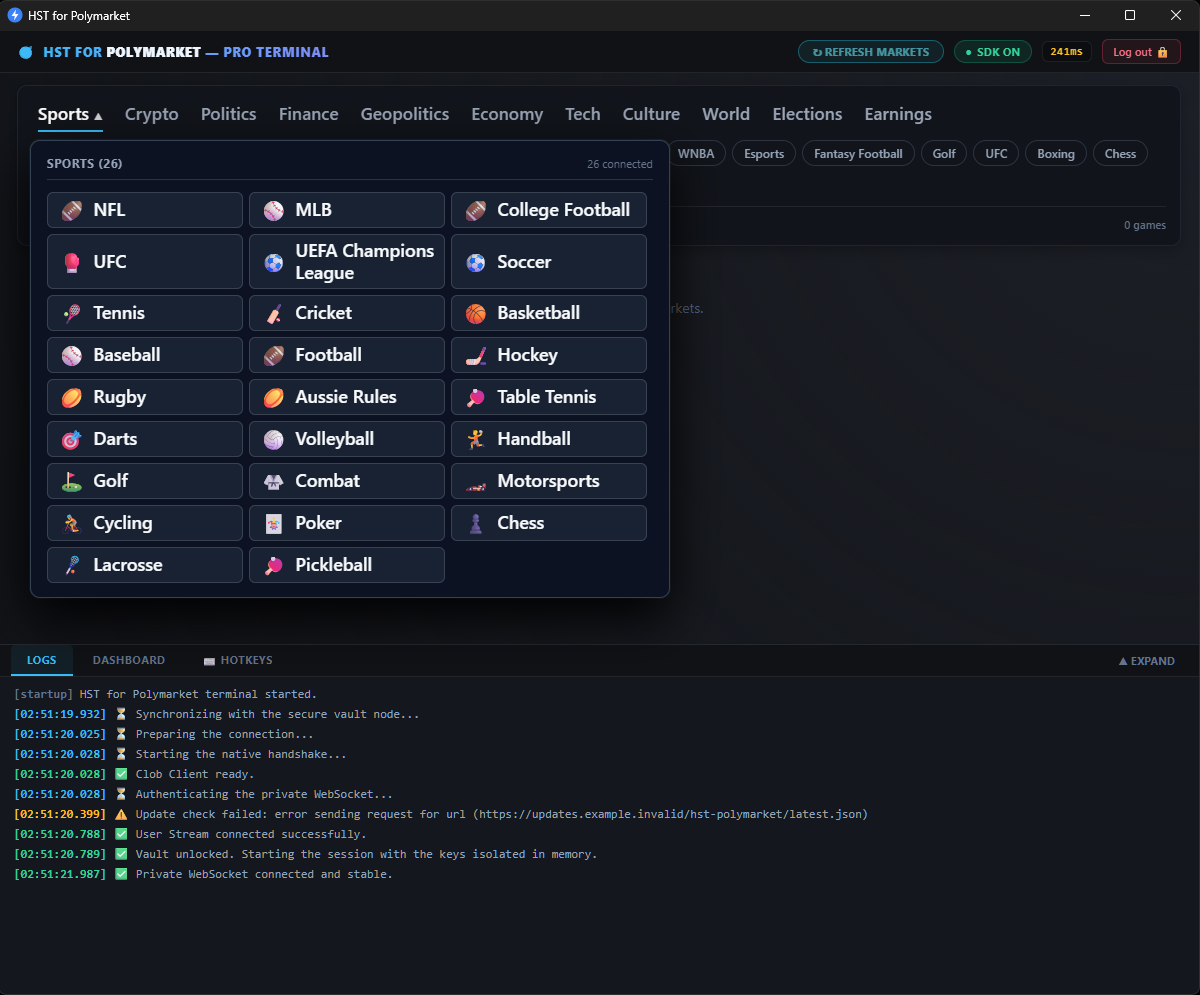
Click Sports, Crypto or another category at the top. In this example: Sports. The list of sports opens. Click one.
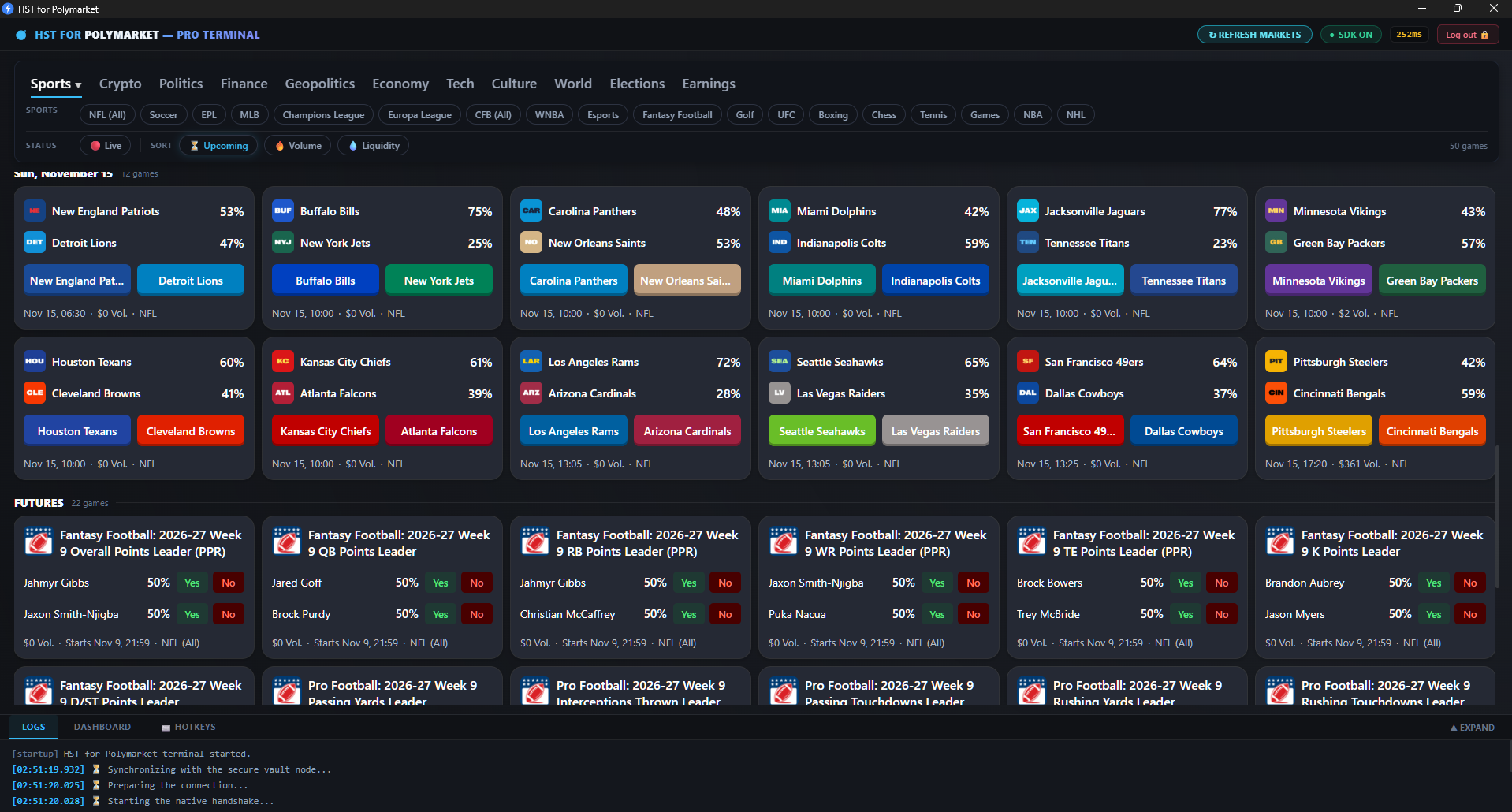
The games of that sport load. In this example: NFL. Click a team button to open its ladder.
| NFL (All), Soccer, EPL... | Leagues of this sport. Filters the games by league. |
| Live | Shows the games happening now. |
| Upcoming | Shows the games that start later. |
| Volume | Sorts the list by traded volume. |
| Liquidity | Sorts the list by liquidity in the book. |
| REFRESH MARKETS | Reloads the list of markets. |
| Game card | Shows the two teams and the price of each side. |
| Team button | Opens the ladder of that team. |
| FUTURES | Season markets. Yes and No buttons open the ladder of each side. |
Crypto markets
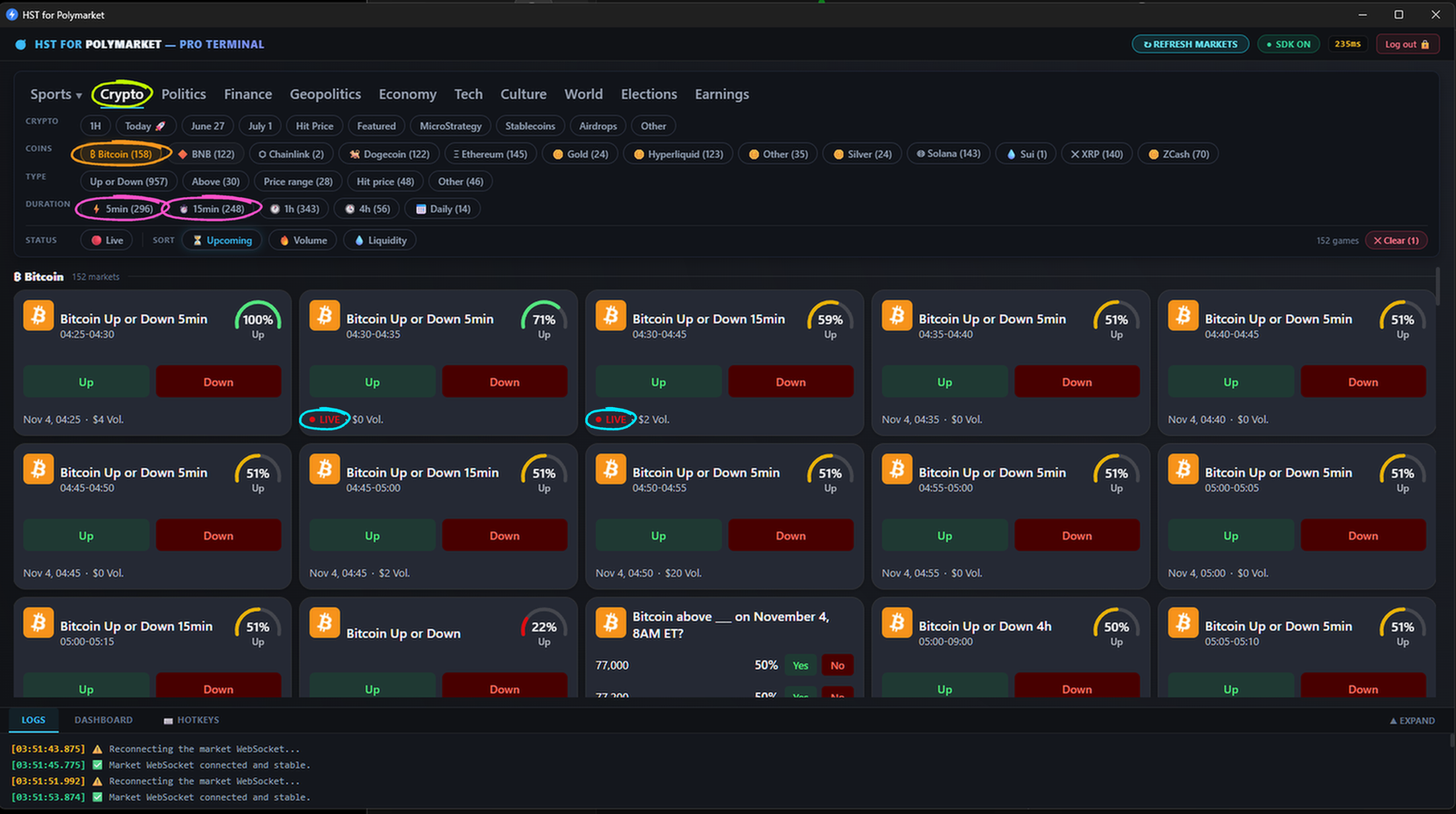
 Click Crypto at the top. The crypto markets open: many coins, many types, many durations.
 Click Bitcoin in the COINS row. The list shows only the Bitcoin markets: Up or Down of 5 and 15 minutes, at every start time available.
 To see only 5 minutes or only 15 minutes, click the duration in the DURATION row.
 The markets marked LIVE are the ones with price movement right now.
Next market
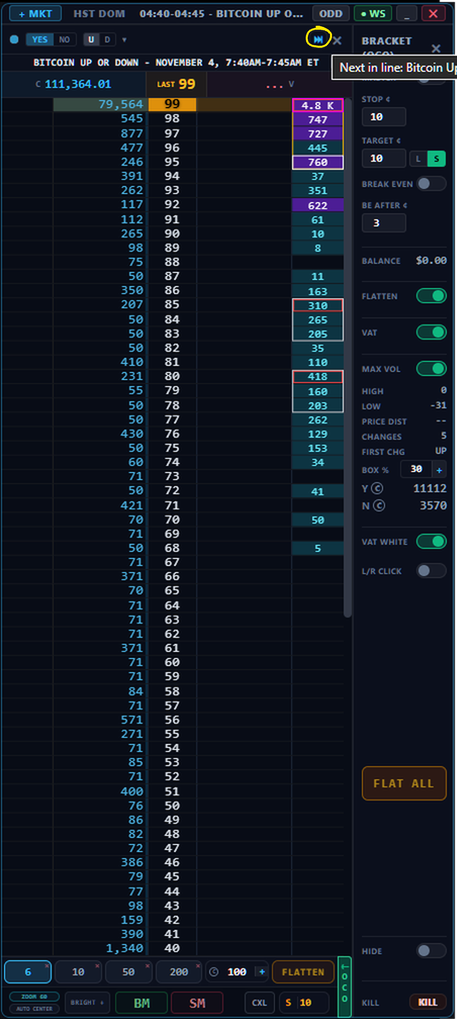
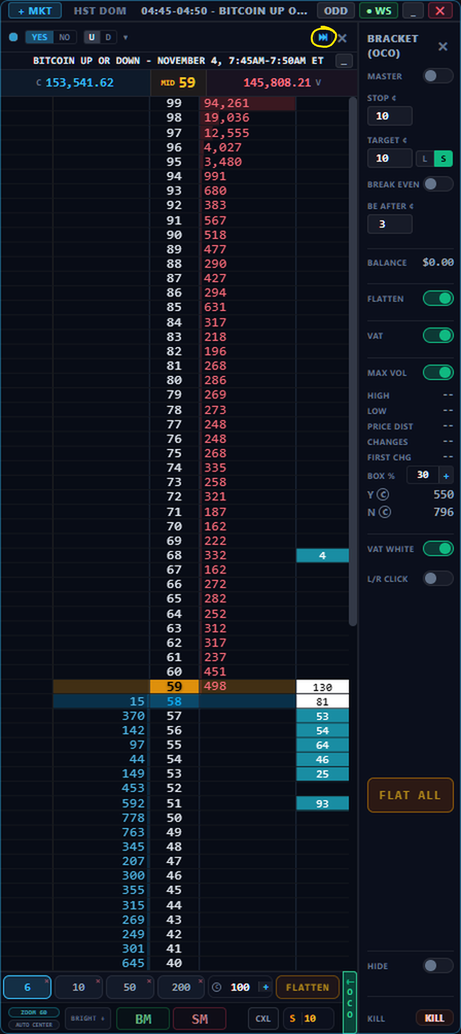
 Only in the crypto markets. When the market is near the end, or has ended, click the ⏭ button at the top of the ladder. The ladder jumps to the next market in line. You do not need to go back to the market list.
Below, left: the 04:40 market has ended. Right: after the click, the 04:45 market is open in the same ladder.
Structure Read before you trade
Price or odds, single book, YES side and NO side, double book, zoom, hide. Read before you trade.
1. Price or odds
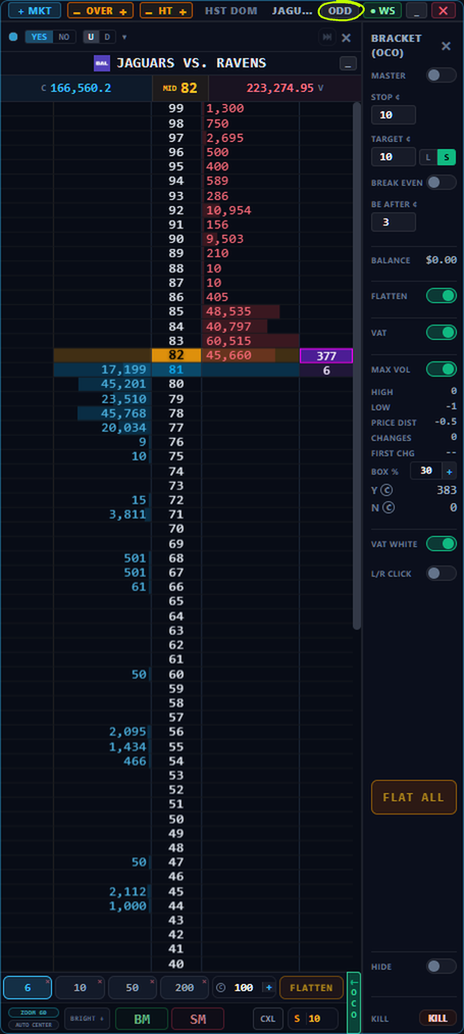
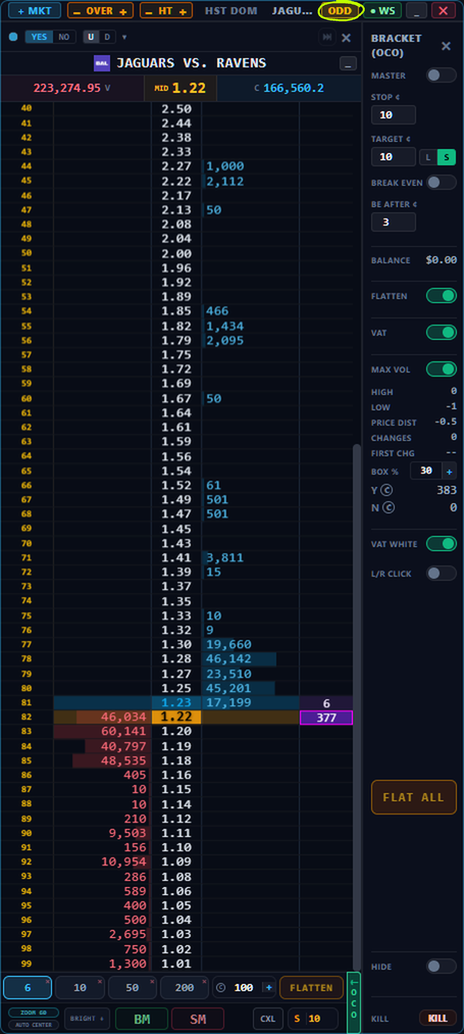
The ODD button is at the top of the window. OFF: the ladder shows prices in cents, from 99 at the top to 1 at the bottom. ON: the ladder shows decimal odds (100 divided by the cents), with the highest odd at the top. Display only: your orders, stops and logs stay in cents.
Below: ODD off on the left, ODD on on the right.
2. Single book
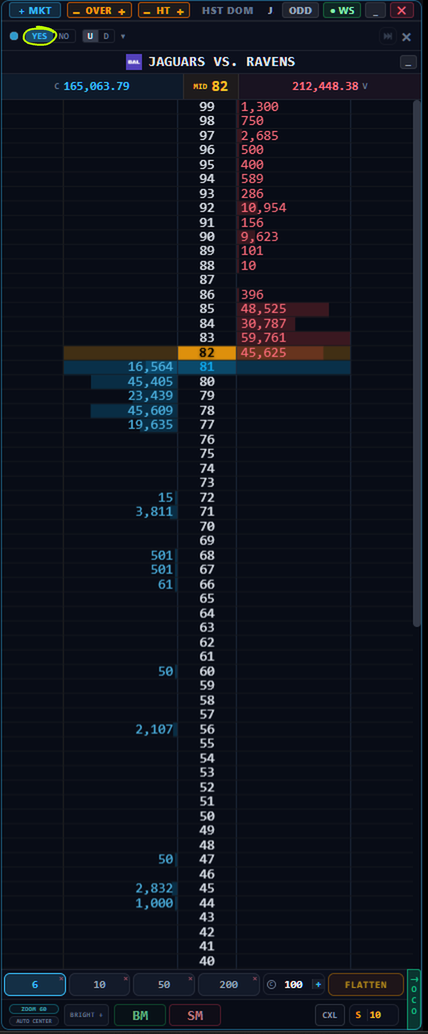
The ladder opens in the single book. It works like the order book of a futures contract on the CME in Chicago.
Prices from 99 cents at the top to 1 cent at the bottom. Sell orders above the price, in red. Buy orders below the price, in blue.
The ladder opens on the YES side. The YES button is lit. A click on a price buys YES.
With a position: a click on the sell side sells your position. It does not buy the other token. You hold one token at a time.
3. NO side
Click the NO button. The same ladder turns around: now a click on a price buys NO.
It is still the single book, with one token at a time. Only the side changed.
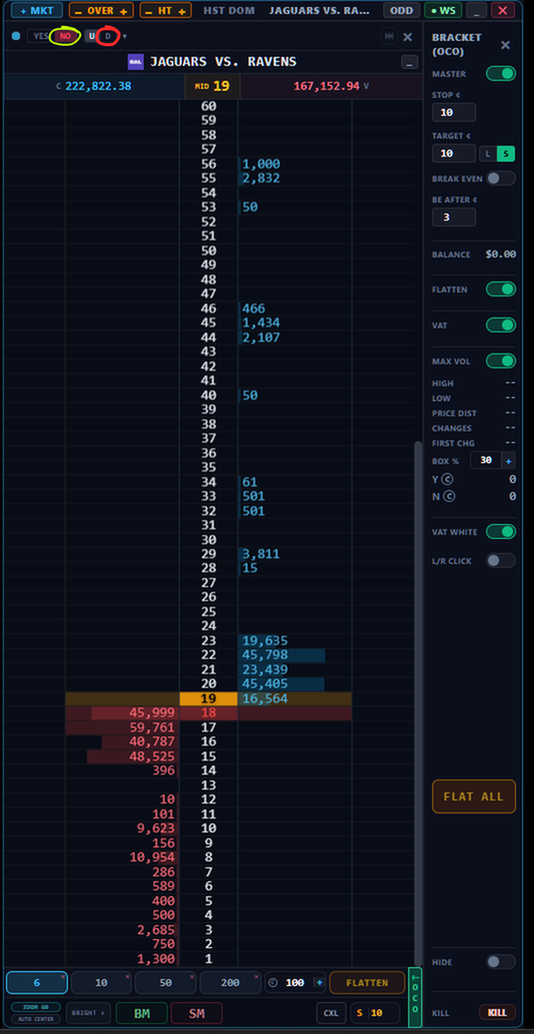
4. Double book
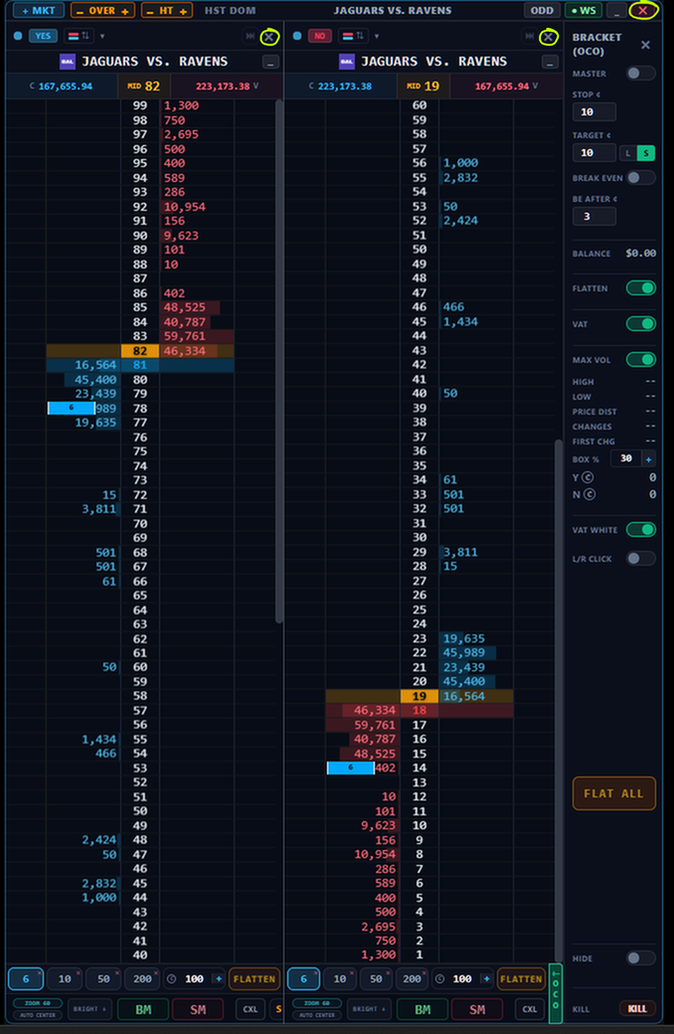
 Click the D button. The window shows two books: YES on the left, NO on the right.
Click a price on the YES side to buy YES. Click a price on the NO side to buy NO. You can hold both tokens at the same time. You sell only what you already bought.
In the double book, the red X at the top right and the ✖ of each ladder do the same: cancel all your open orders and close all your open positions in the two books. Be careful. To go back to the single book, you must close the window with the X and open the market again. This closes all your positions and cancels all your orders. There is no button to go back. There is no way to go back to the single book and keep positions or orders that were open in the double book, even positions or orders opened before you turned the book into a double book. Why? From single to double, you can switch at any time, with a position open. In the single book you hold only one token, so the double book receives it with no problem. From double to single, you can hold both tokens. The single book cannot work with two tokens at the same time: a click on the other side would be an exit for one token and an entry for the other. That is why the way back is closed.
Below: double book with one order on YES (6 shares at 78 cents) and one order on NO (6 shares at 14 cents).
5. Zoom
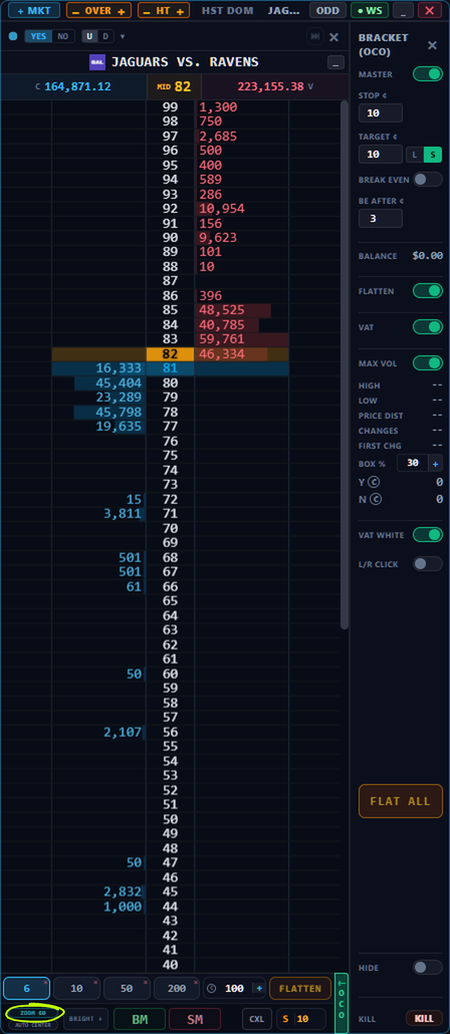
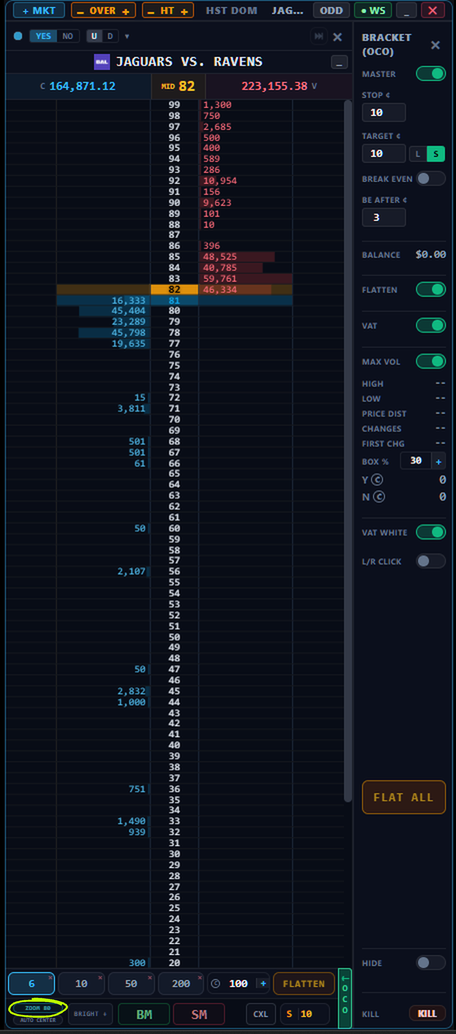
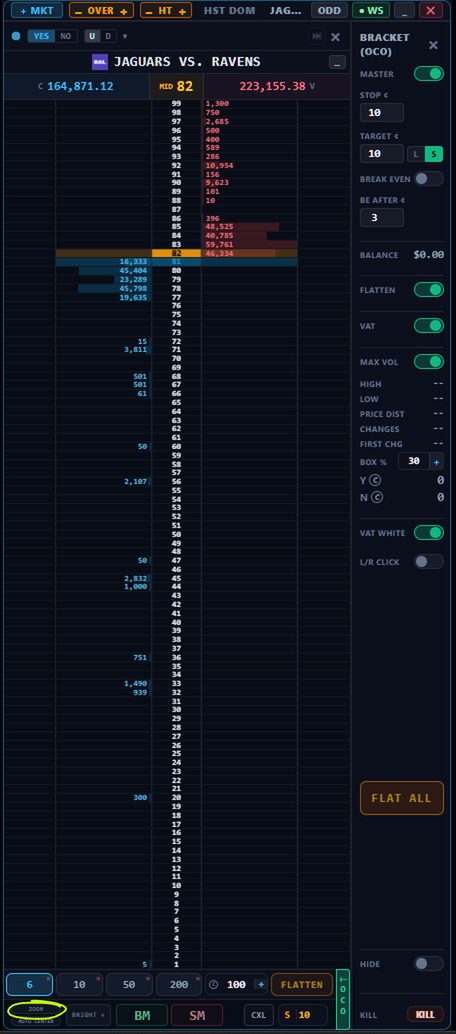
The ZOOM button is at the bottom left of the ladder. It changes how many price rows the ladder shows: 60, 80 or 99. Each click goes to the next size: 60, then 80, then 99, then 60 again.
Below, from left to right: zoom 60, zoom 80 and zoom 99.
6. Hide
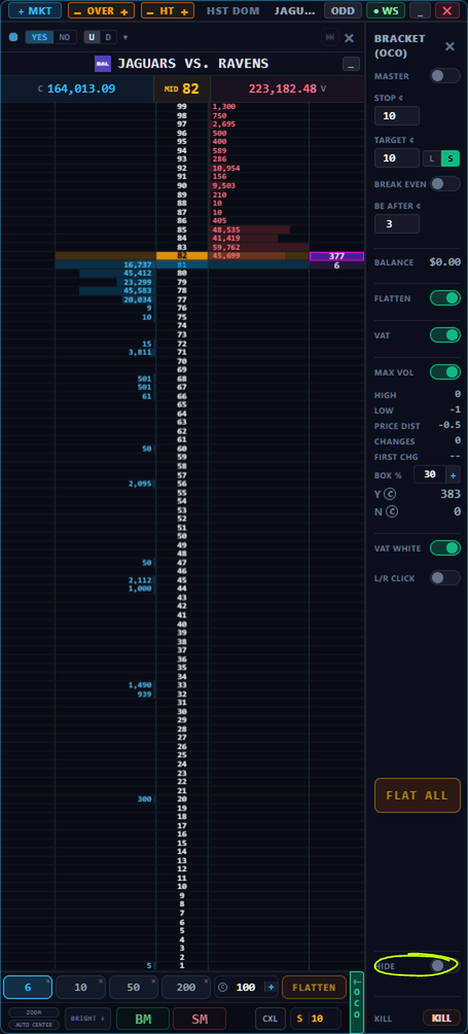
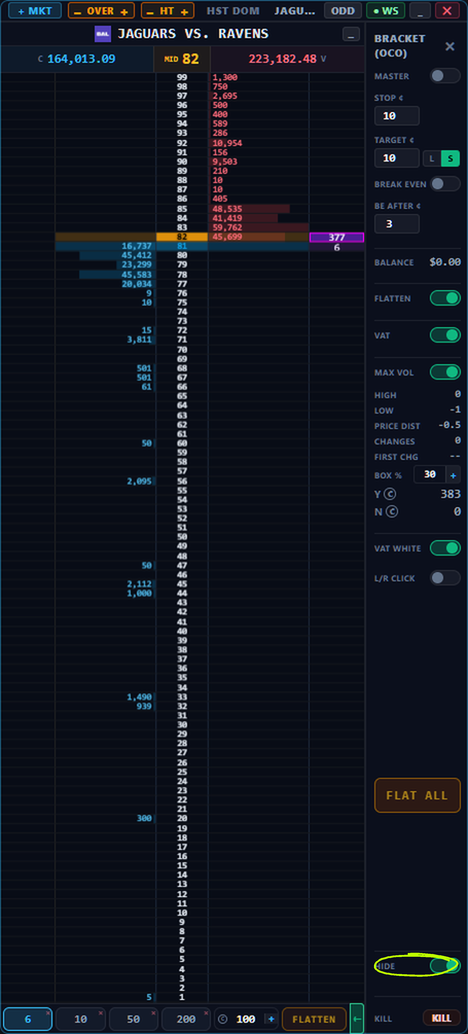
The HIDE switch is at the bottom of the drawer. OFF: the ladder shows its title row at the top (color dot, YES and NO, U and D, market name) and its bottom row (ZOOM, BRIGHT, BM, SM, CXL, S). ON: these two rows go away and the ladder gets taller. Nothing is turned off, only hidden.
This is useful with zoom 99, when you want to see all the price levels. Below: HIDE off on the left, HIDE on on the right.
Orders Read before you trade
Limit order; market order, manual stop and manual target; automatic stop and target (OCO), limit target and synthetic target.
Limit order
A limit order waits in the book. It is executed only when the market comes to its price.
The quantity of every order is the box lit at the bottom left of the ladder (6, 10, 50 or 200). That number of shares goes in the next order, limit or market.
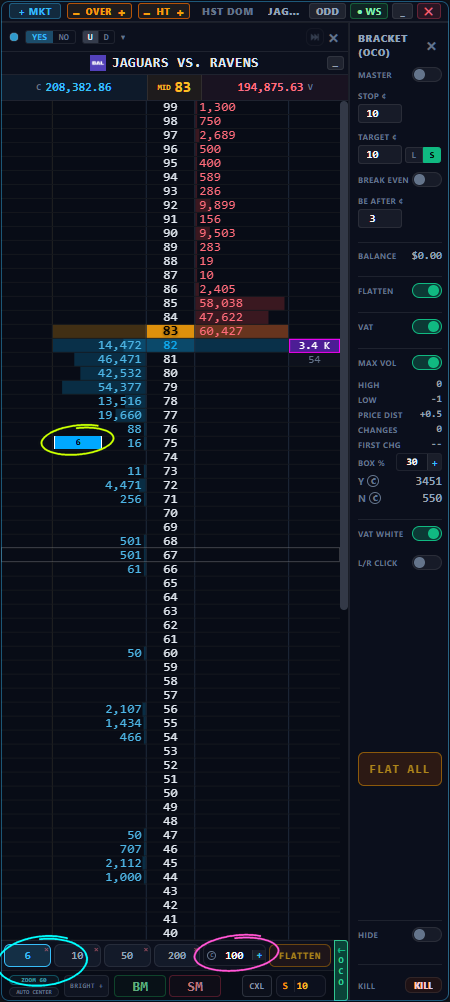
You can type your own quantity in the box with the number 100, at the bottom of the ladder. Type the number and press + or Enter: a new box appears with that quantity, already selected. From then on your clicks use that quantity, until you click another box. Example: the box shows 100 and there is no 100 button in the row. Click inside the box and press Enter, or click the + next to it: a new 100 button appears, already selected, and your next clicks place orders of 100 shares, until you select another quantity.
Click with the left button on the left side of the ladder, below the price: you place a limit order on the YES token (an order that waits for the market to come to its price; when it is executed, you are long the YES token).
Click with the left button on the right side of the ladder, above the price: you place a limit order on the NO token (an order that waits for the market to come to its price; when it is executed, you are long the NO token).
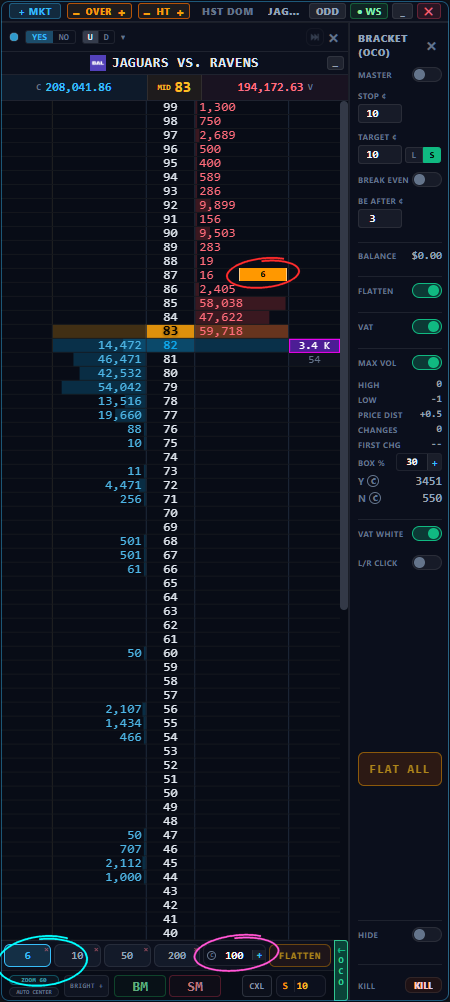
Below, left: limit order of 6 shares on YES at 75 cents. Right: limit order of 6 shares on NO at 87 cents (87 on the ladder means you want to buy the NO token at 13 cents).
Double book
In the double book you can place a limit order on the YES token and on the NO token at the same time. Both go below the price, on the left side of each book. Without a position, an order above the price is not accepted: it would be a sell order, of YES or of NO, and you cannot sell a token you do not hold.
Note: the single book accepts the order below and above the price, because below you buy YES and above you buy NO.
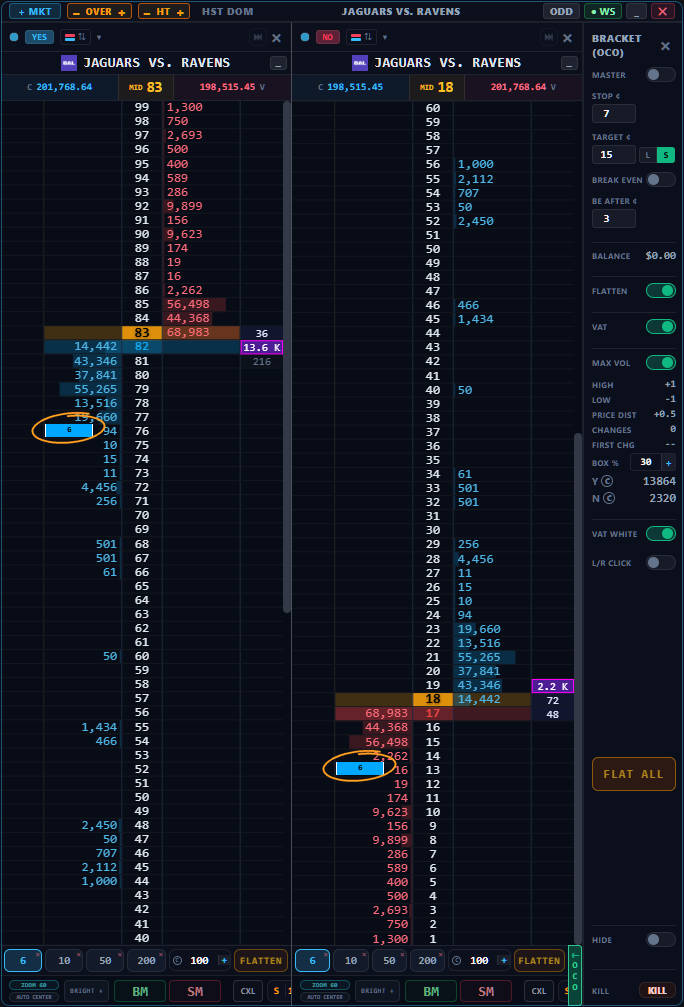
Below: limit order of 6 shares on YES at 76 cents and limit order of 6 shares on NO at 13 cents, in the same book (double book), at the same time.
Market order, manual stop and manual target
A market order does not wait. It is executed right away, at the best price in the book.
 The market order respects the S box, at the bottom right of the ladder: the maximum slippage you accept, in cents (price levels), to be executed. The value is editable: 2, 3, 4, any number of levels you accept to pay above the price where you clicked. If there are shares available at the first level, you get the best price possible. Example with S = 10: you click and the best price in the book is 12 cents away or more; the order is not executed at market. A limit order is placed 10 cents from the price you clicked, and it waits for the market. At any time you can cancel it with FLAT ALL, or with a right click on the order, and send the market order again.
The simple way: the BM button (Buy Market), at the bottom of the ladder, buys the YES token at market, with the quantity of the selected box.
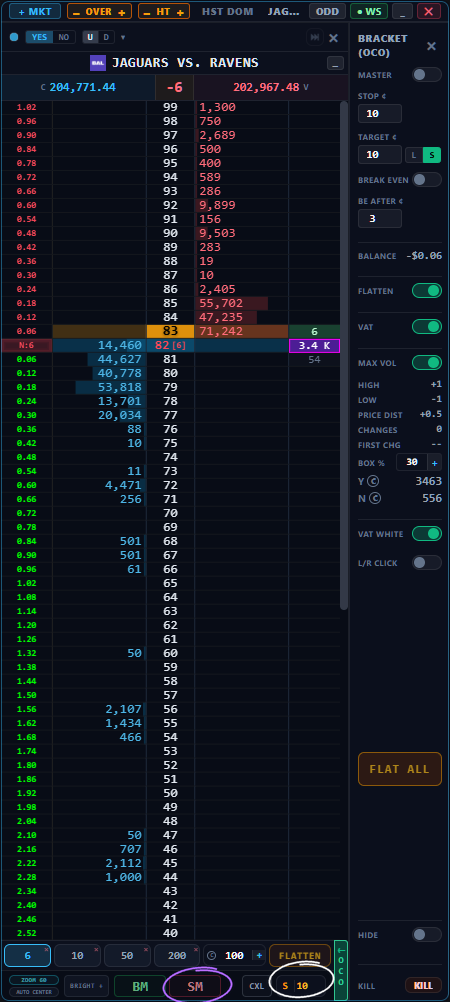
 The SM button (Sell Market) sells at market the same quantity. Without a position, this buys the NO token: the ladder shows N:6 at the top. Note: in the single book, the Sell Market button means buying the NO token at market.
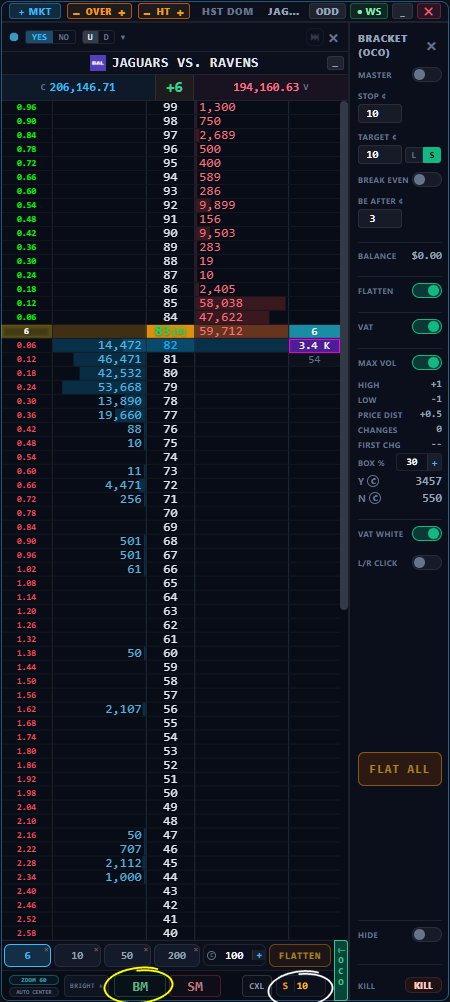
Below, left: after BM, position +6 in YES. Right: after SM, position N:6 in NO.
Click with the left button on the left side of the ladder, above the price: you buy YES at market, with the quantity selected in the box.
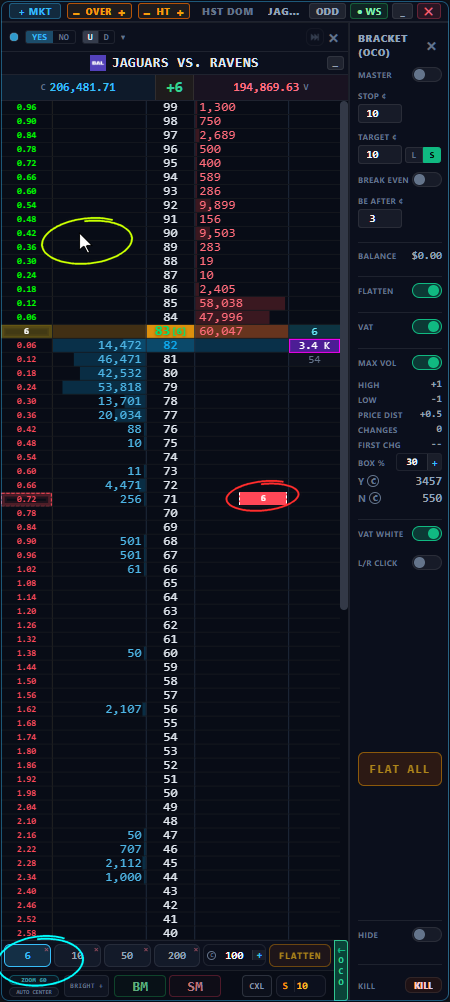
After the buy at market, you can place a stop by hand: click with the right button on the right side of the ladder, below the price. The stop is the order that sells your position if the price falls to that level.
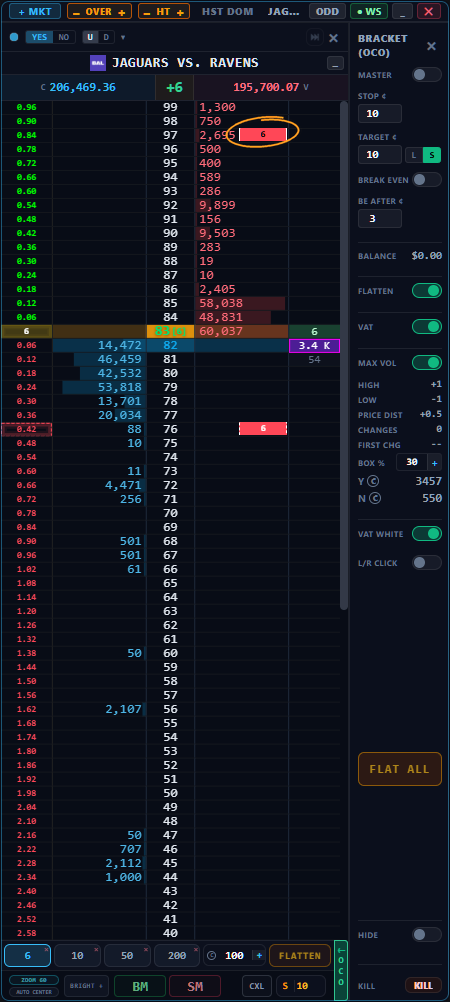
With a position in the YES token, you can also place a target by hand: click with the left button on the right side of the ladder, above the price. The target is the order that sells your position with profit if the price rises to that level.
Below, left: 6 shares bought at market (position +6 at the top of the ladder); stop of 6 shares at 71 cents, placed with the right button. Right: the same position with a target of 6 shares at 97 cents and the stop at 76 cents.
Automatic stop and target (OCO): limit target and synthetic target
Limit order: your entry price. The stop and the target are measured from it.
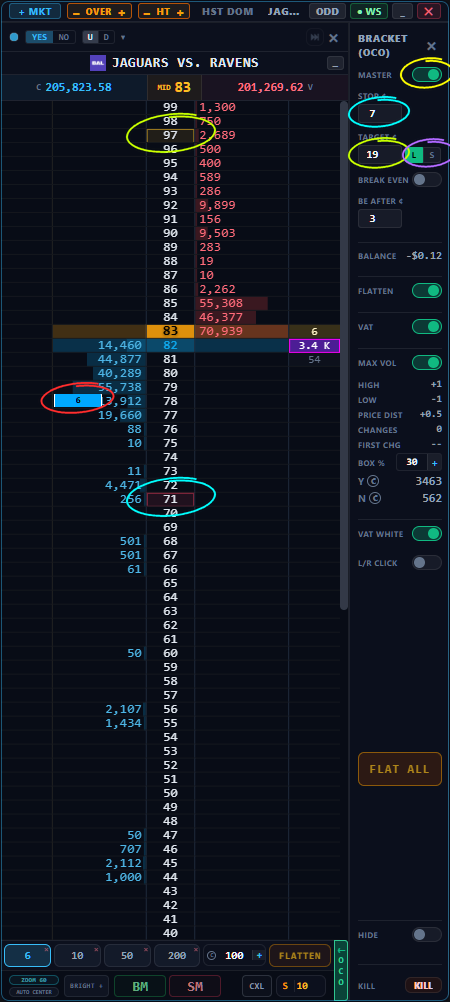
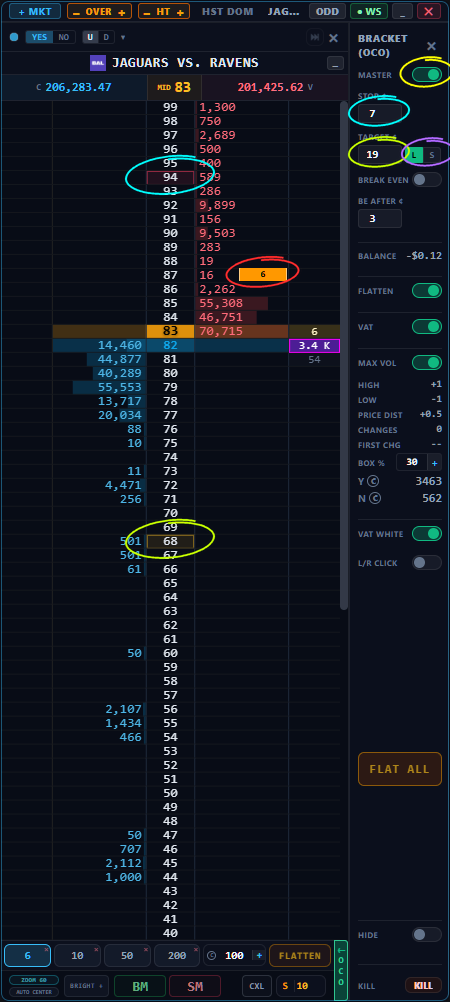
MASTER switch, at the top of the BRACKET (OCO) panel on the right. ON: every order you place gets a stop and a target automatically. OFF: you place stop and target by hand, as in the section above.
STOP box: the distance of the stop from your entry price, in cents.
TARGET box: the distance of the target from your entry price, in cents.
L and S buttons: the type of target. L is a limit target: an order that waits in the book at the target price. S is a synthetic target: nothing in the book; when the price reaches the level, HST sends a market order to close your position.
The difference: with the limit target, if the stop fires, Polymarket first makes you cancel the limit target (it is an order in the book) and only then you are stopped. In crypto markets, very fast and with big volume, this can mean a worse price for the stop. With the synthetic target there is nothing to cancel: the stop goes out right away. On the other side, the limit target exits exactly at its price; the synthetic target exits at market when the level is reached.
How it works: with MASTER on, a limit order shows the future stop and target as shadows on the ladder; when the order is executed, the stop and the target become real orders. With a market order (BM, SM or a click), the stop and the target appear right after the execution.
Below, left: MASTER on, STOP 7 and TARGET 19, L selected; limit order of 6 shares at 78 cents; the shadows show the target at 97 cents and the stop at 71 cents. Right: MASTER on, limit order of 6 shares on NO at 87 cents; the shadows show the stop at 94 cents and the target at 68 cents. For the NO token the stop is above and the target is below.
Note: with MASTER on, the BM and SM buttons also get the automatic stop and target. They appear as soon as the market order is executed, at the distances set in the STOP and TARGET boxes, measured from the execution price.
Features
Every button of the ladder and of the drawer, and the marks of the volume column.
Buttons of the ladder
Each line goes from a button to what it does. Click the picture to enlarge.
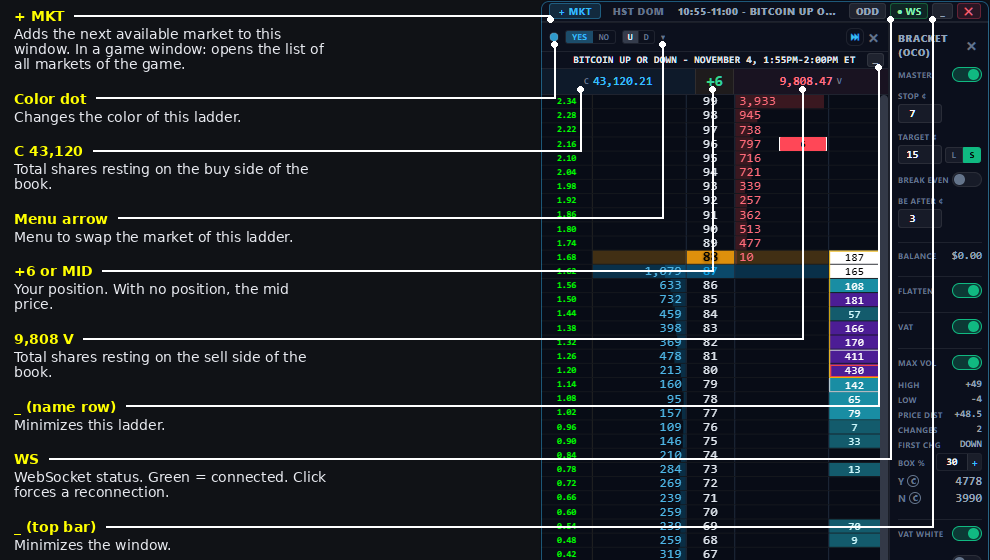
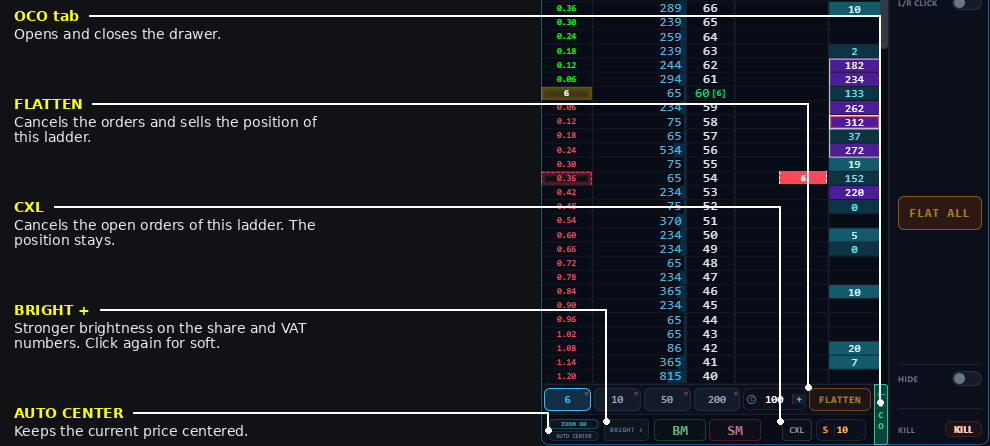
Buttons of the drawer and the volume marks
The drawer (BRACKET OCO) opens with the OCO tab. MASTER, STOP, TARGET, L and S are explained in Orders.
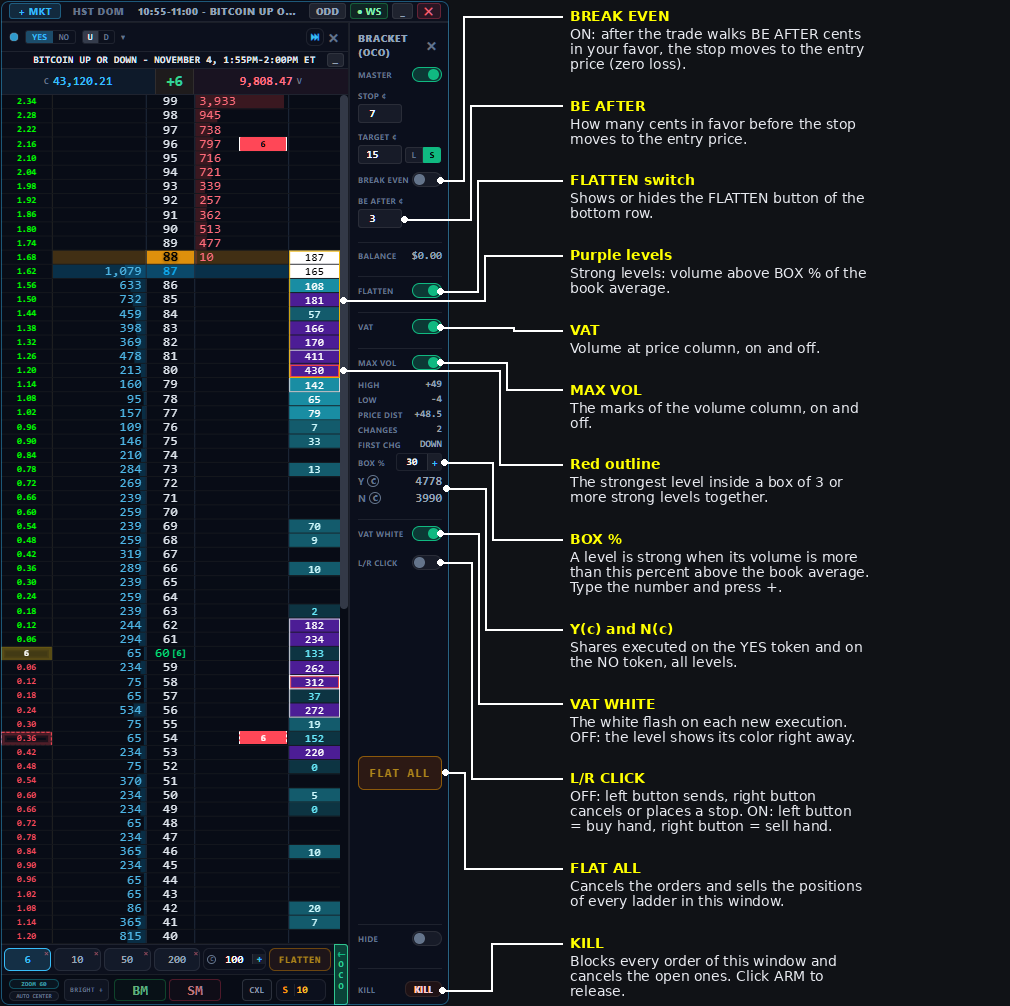
MAX VOL marks
The marks start after some level reaches 200 shares executed. Magenta box: the level with the most shares executed. White box: the last level the magenta box left. Purple levels: strong levels, with volume above BOX % of the book average (all shares executed divided by the levels traded). Yellow box: 3 or more strong levels together (up to 9 levels wide, at most one weak level between two strong ones); inside it, a red line on the strongest level. Older yellow boxes turn grey.
Dashboard
The bottom panel: logs, dashboard, hotkeys.
| LOGS | Panel with the log lines of the program. |
| DASHBOARD | Panel with positions, orders and trades. |
| HOTKEYS | Panel with the keyboard shortcuts. |
| EXPAND | Makes the bottom panel bigger. |
| SDK ON | The connection to Polymarket is active. |
| 220ms | Round-trip time to the exchange. |
| Log out | Locks the vault and closes the session. |
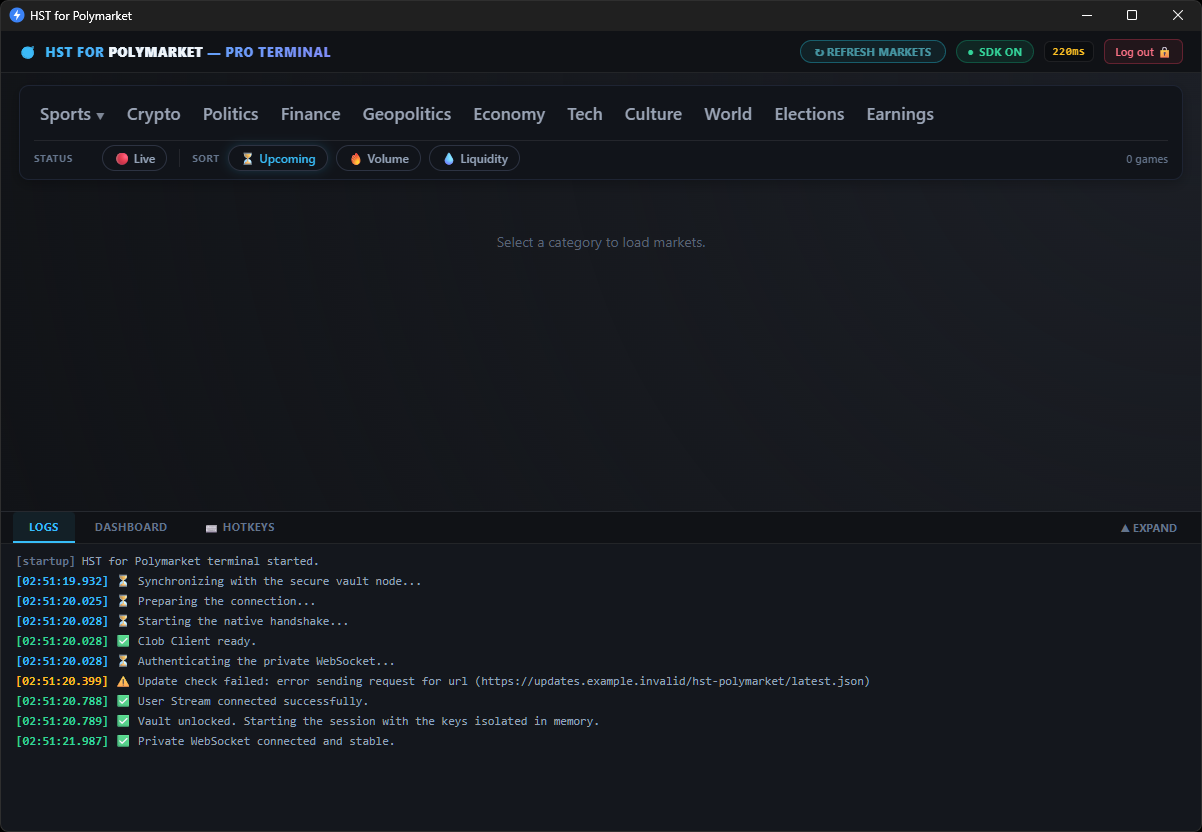
The bottom panel (LOGS, DASHBOARD, HOTKEYS)
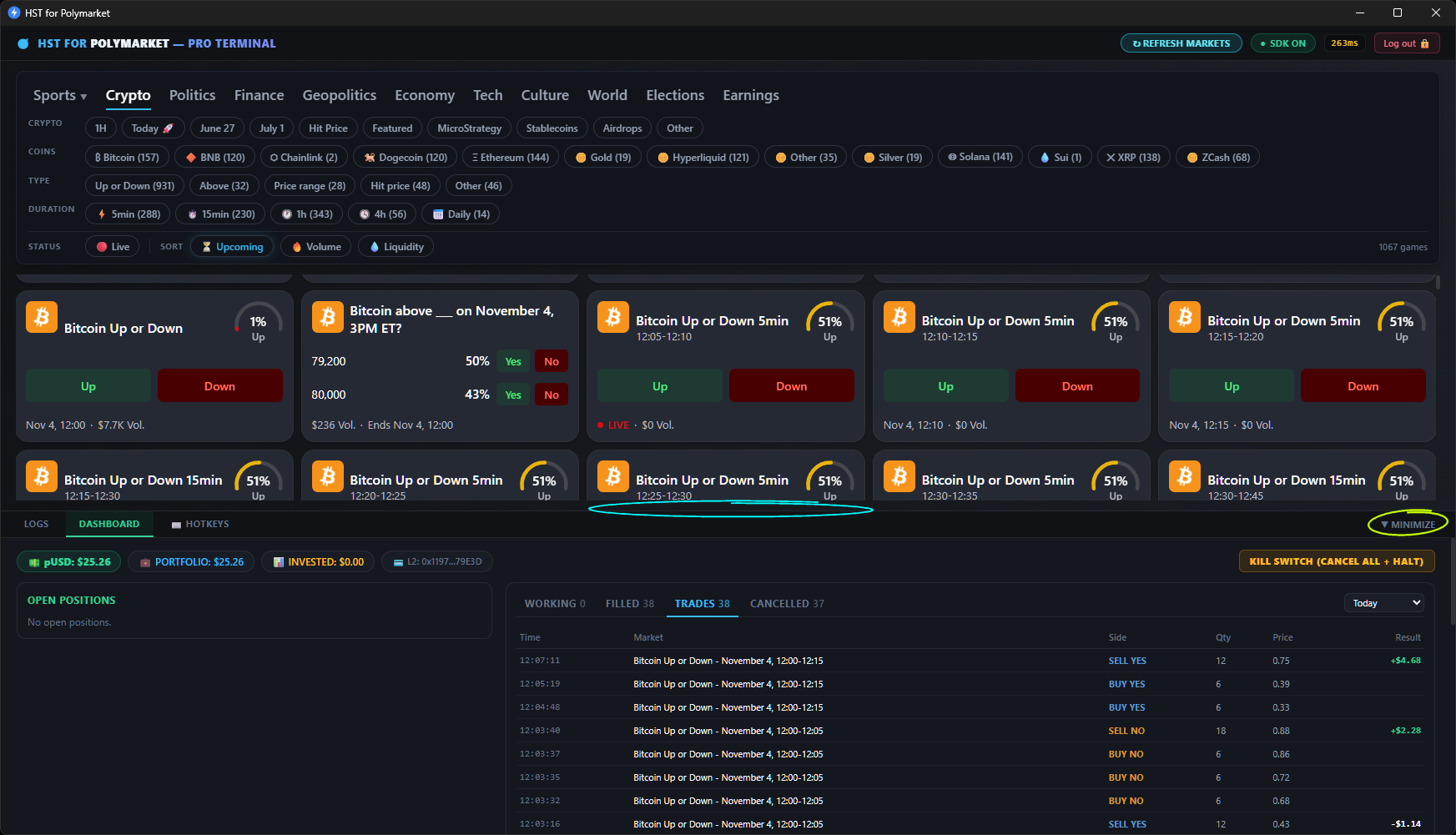
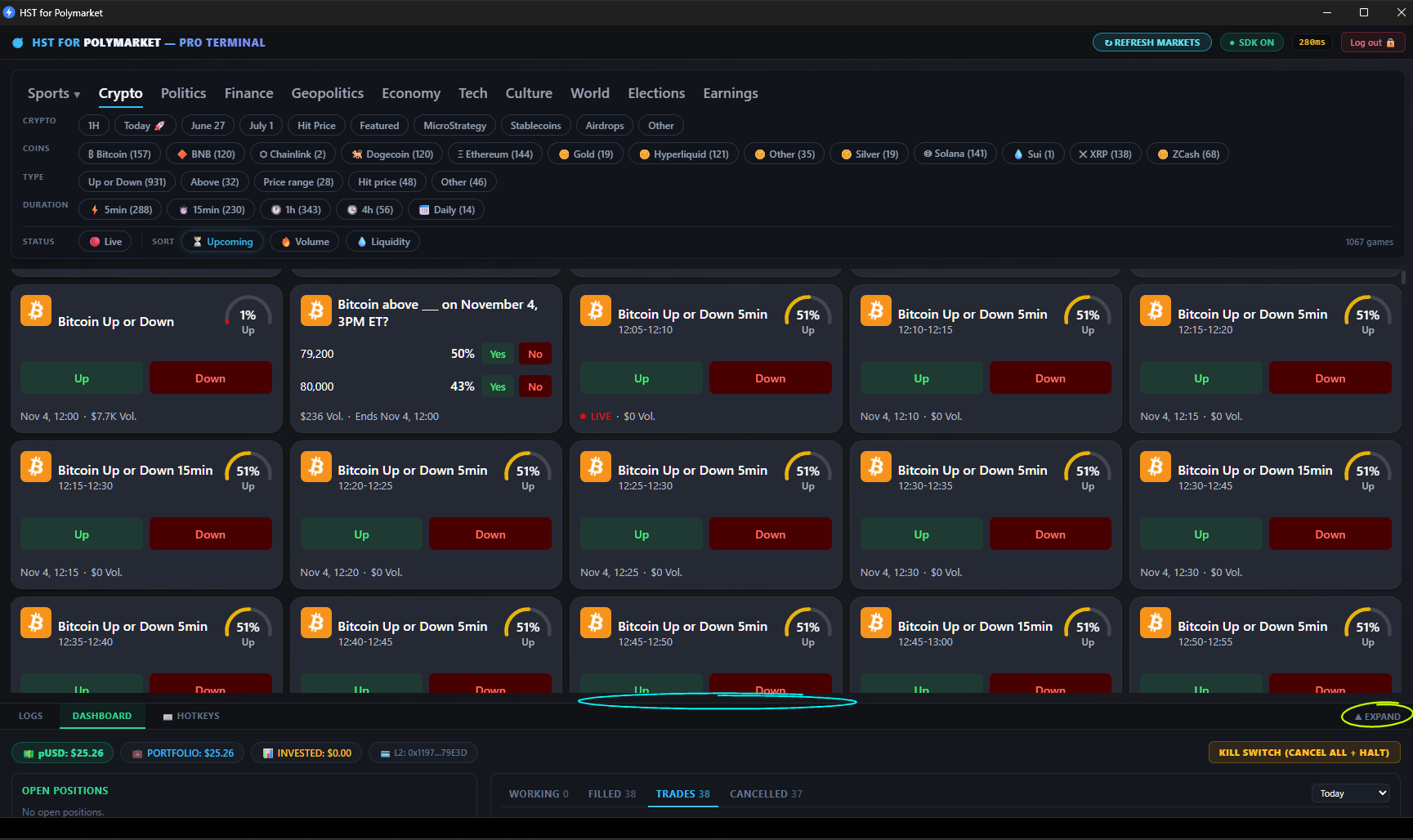
The panel at the bottom of the main screen has three tabs: LOGS, DASHBOARD and HOTKEYS. To make it taller or shorter: click MINIMIZE or EXPAND at the right end of the tab row.
Or click the line that separates the panel from the market list and drag it up or down.
Below, left: panel expanded (MINIMIZE at the right). Right: panel minimized (EXPAND at the right).
DASHBOARD tab
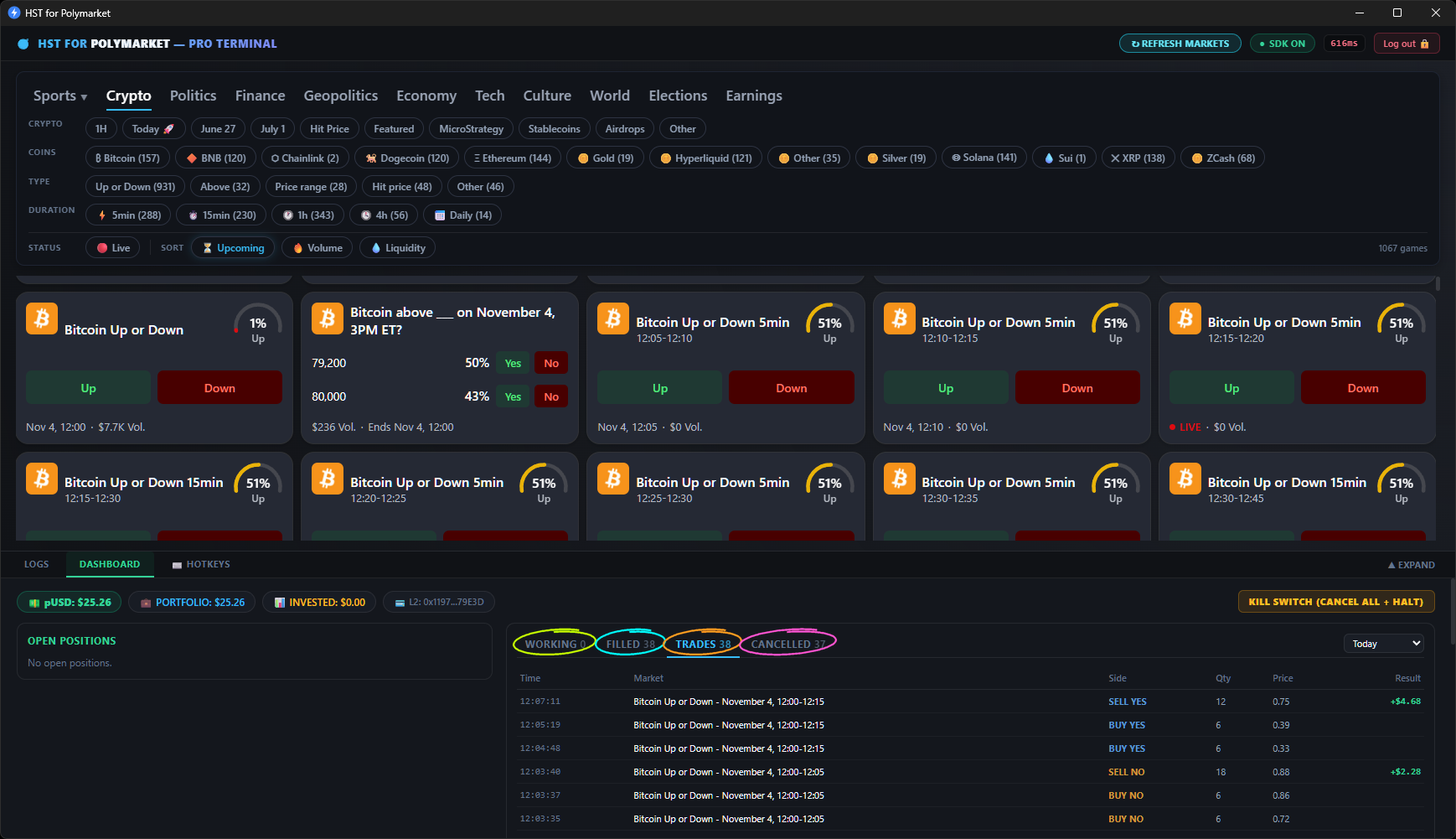
WORKING: your orders resting in the book right now, not executed yet.
FILLED: your orders that were executed.
TRADES: each trade, entry and exit, with the result in dollars.
CANCELLED: your orders that were cancelled before execution.
Click a tab to see its list. The box at the right (Today) chooses the period.
HOTKEYS tab
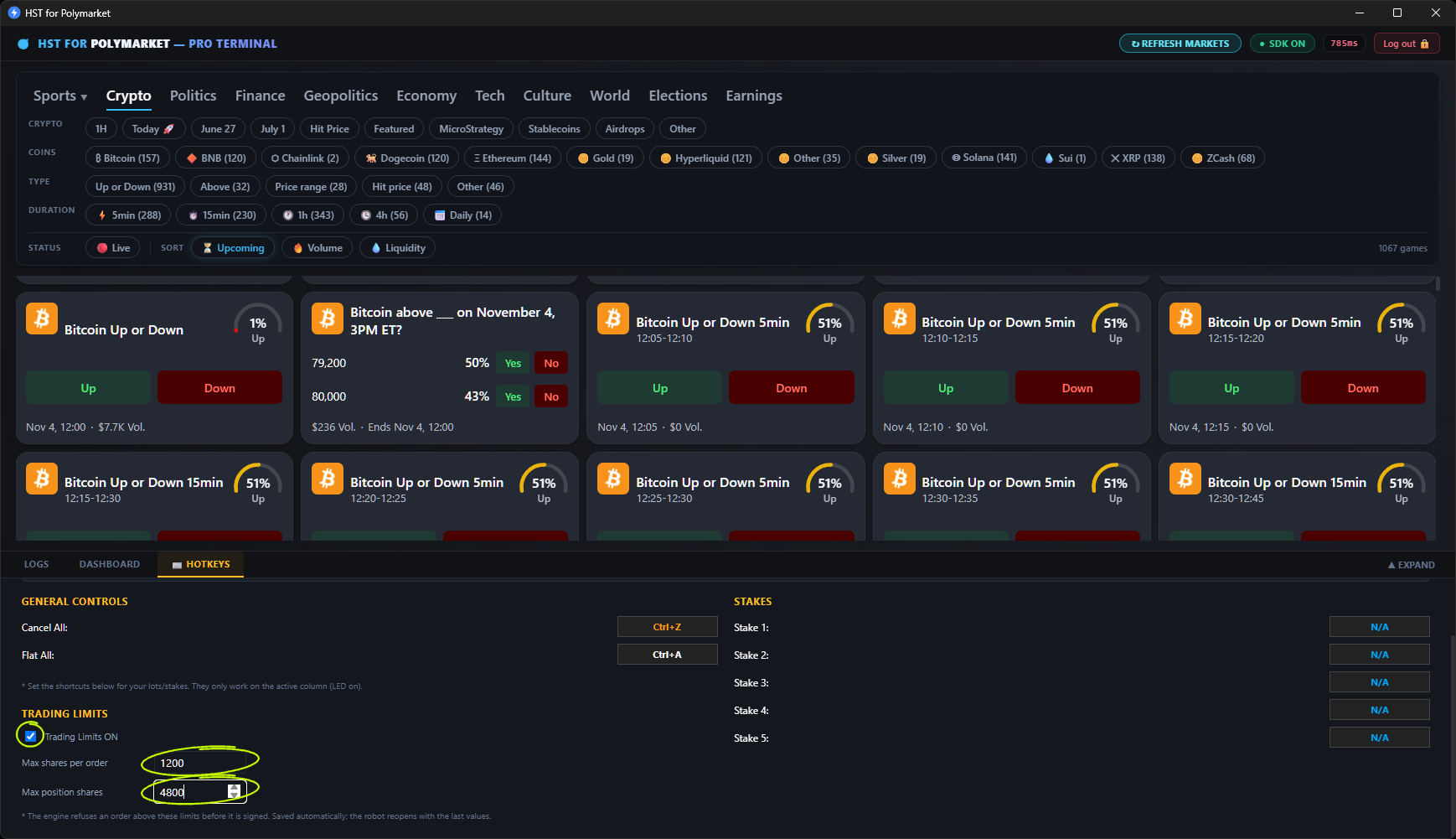
Click HOTKEYS. Cancel All (Ctrl+Z) cancels every open order. Flat All (Ctrl+A) cancels the orders and sells the positions of the active ladder. Stake 1 to 5 are shortcuts for the quantity boxes of the ladder (6, 10, 50, 200 shares).
To set a key: click the button of the line (it turns yellow and shows Press (Enter)...), press the key or the combination you want (for example F, Space or Ctrl+Shift+X), then press Enter to save. Escape cancels. To change a key, do the same again. N/A means no key set. The keys work only on the active ladder, the one with the LED on.
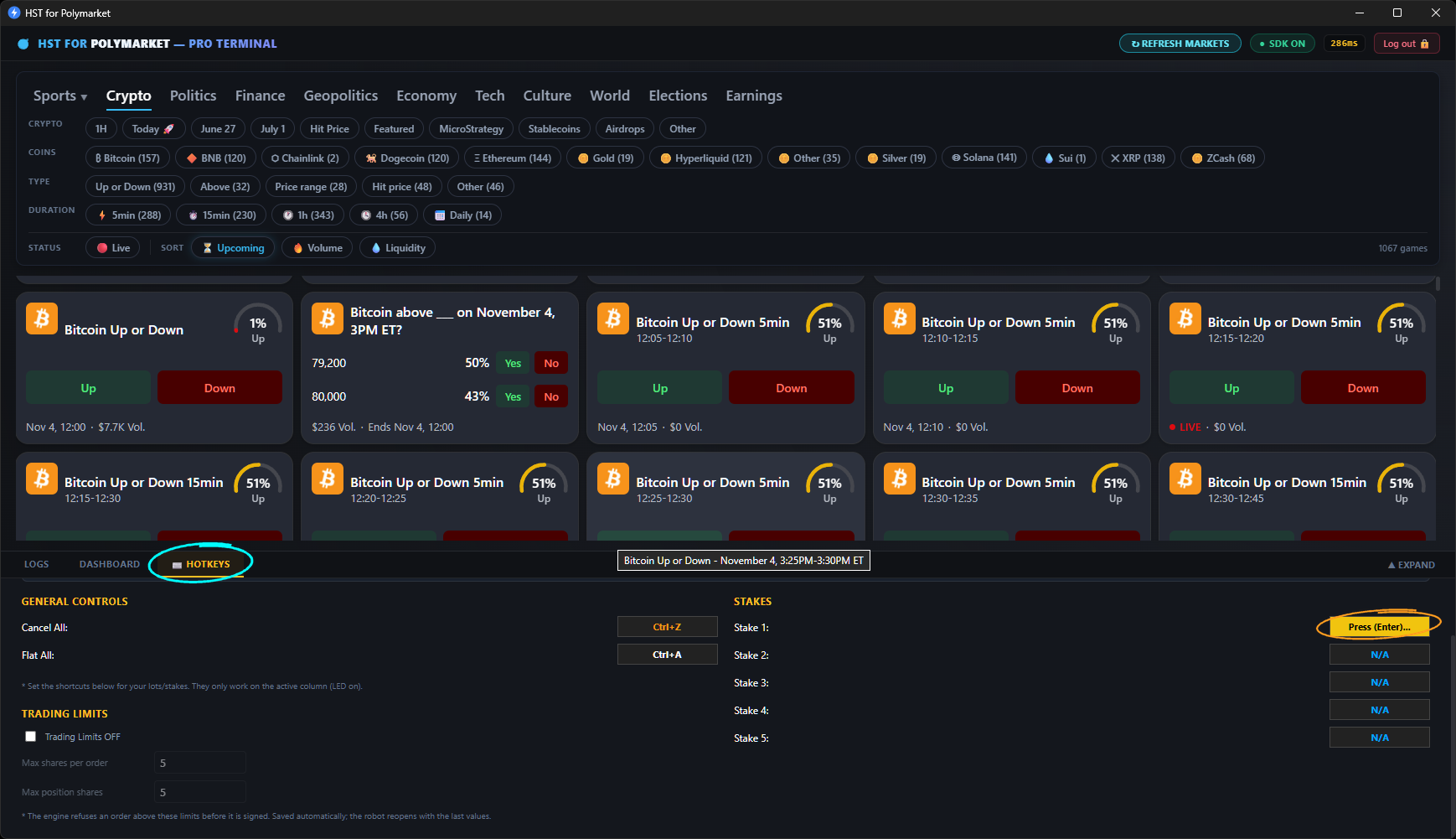
TRADING LIMITS, in the same tab: tick the box (Trading Limits ON) and type the maximum shares per order and the maximum position shares. The engine refuses any order above these limits before it is signed. Saved automatically. If you do not want limits, leave the box unticked.